



Install PuKae from Google Play
PuKae for Android (Android 9 or later) is in a closed test on Google Play, so the Play Store only shows it to accounts that have joined the test. Tap steps 1 → 2 → 3 below in order to install it. The red outline in each picture marks where to tap.
Before you start
- Do all three steps with one account: the Google account your phone's Play Store uses.
- If this page opened inside KakaoTalk or Telegram, choose Open in another browser from the menu (⋮) and continue in Chrome.
- Each numbered button opens a new tab. When you are done there, come back to this page and tap the next number.
1Join the tester group
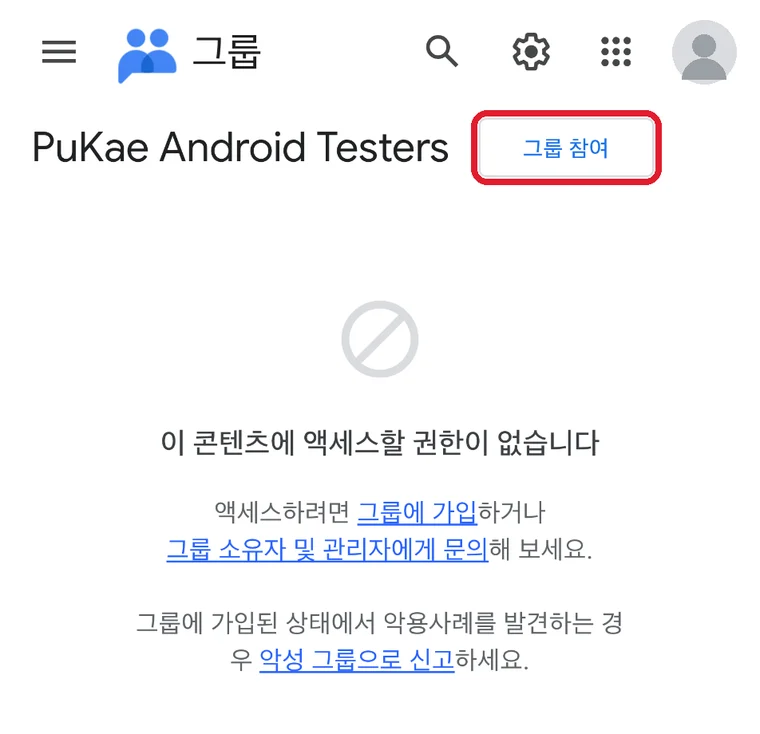
When Google Groups opens, tap Join group next to the group name. 'You don't have permission to access this content' only shows because you have not joined yet.
In the window that opens, leave everything as it is and tap Join group at the bottom right once more.
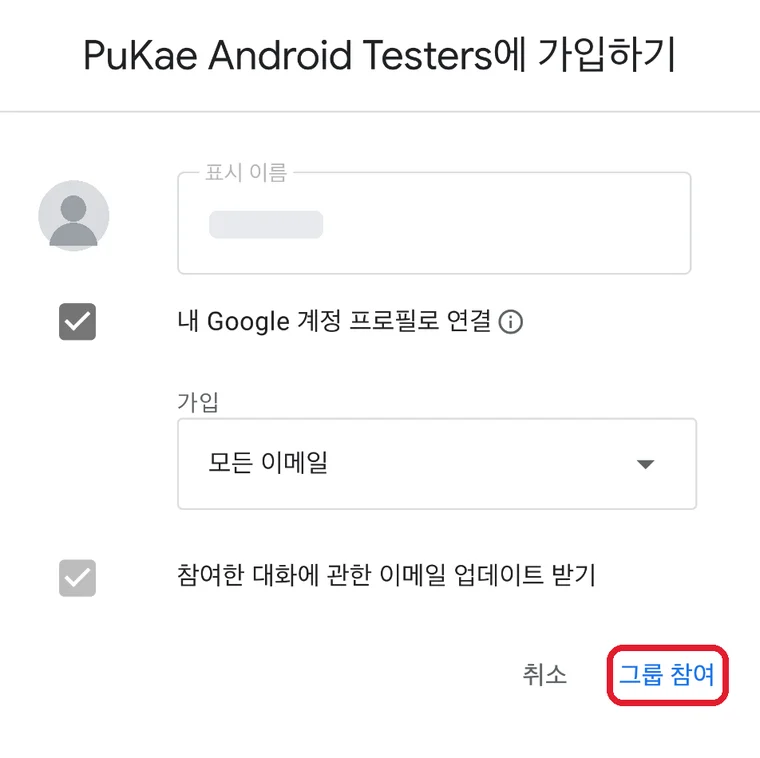
When you see 'No conversations yet', you have joined. The group is only used as the list of testers. Now come back to this page and tap step 2.
2Become a tester
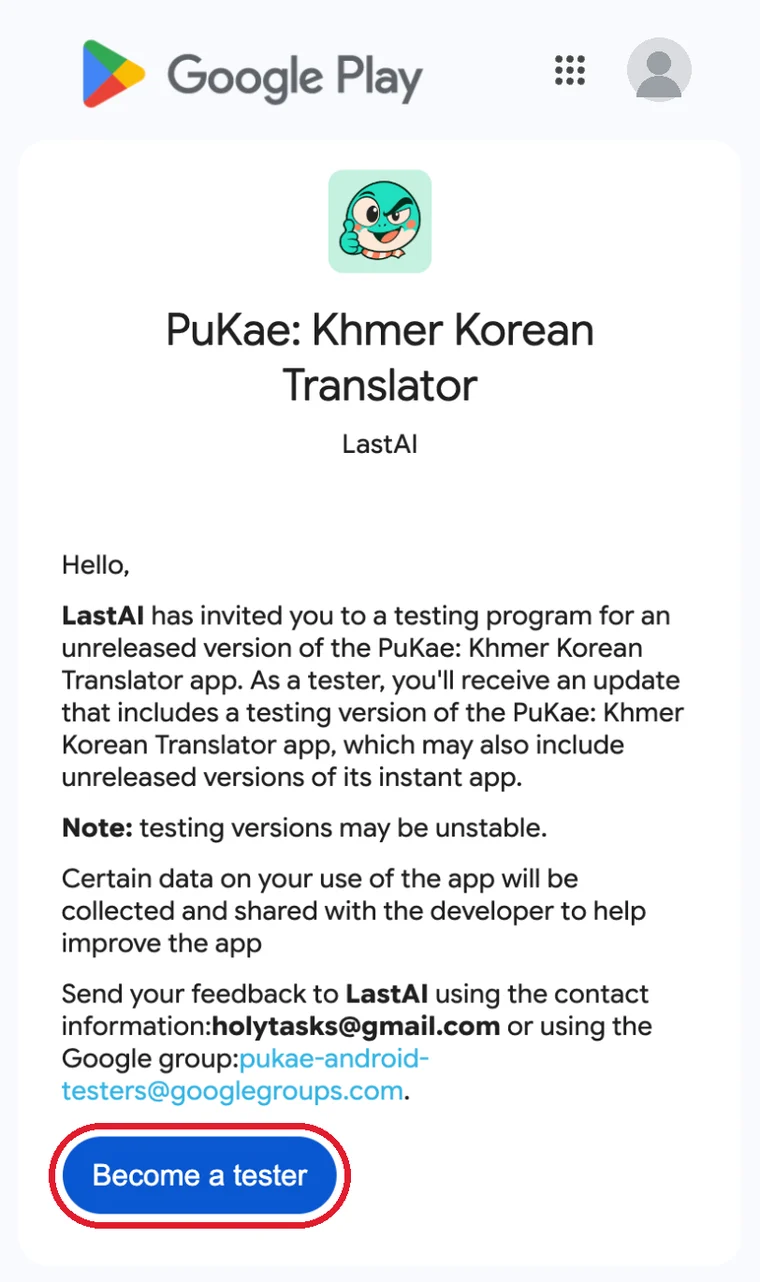
When the Google Play page opens, scroll down and tap the blue Become a tester button. Google shows this page in English only, whatever your phone's language.
Once you see You are a tester. in green, you are in.
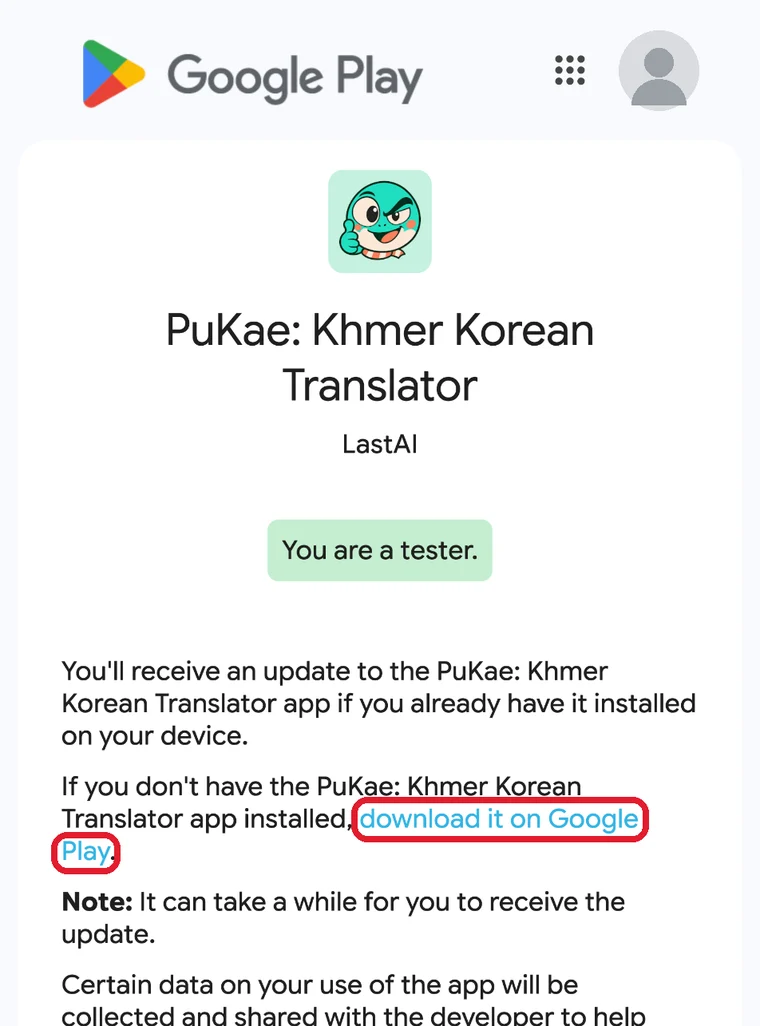
Tap download it on Google Play (outlined in red), or come back to this page and tap step 3.
3Install from the Play Store
3. Install from the Play Store ↗
When the Play Store opens, tap the green Install button. The picture was taken on a computer, so it says 'Install on more devices' (in Korean); on your phone the same spot says Install.
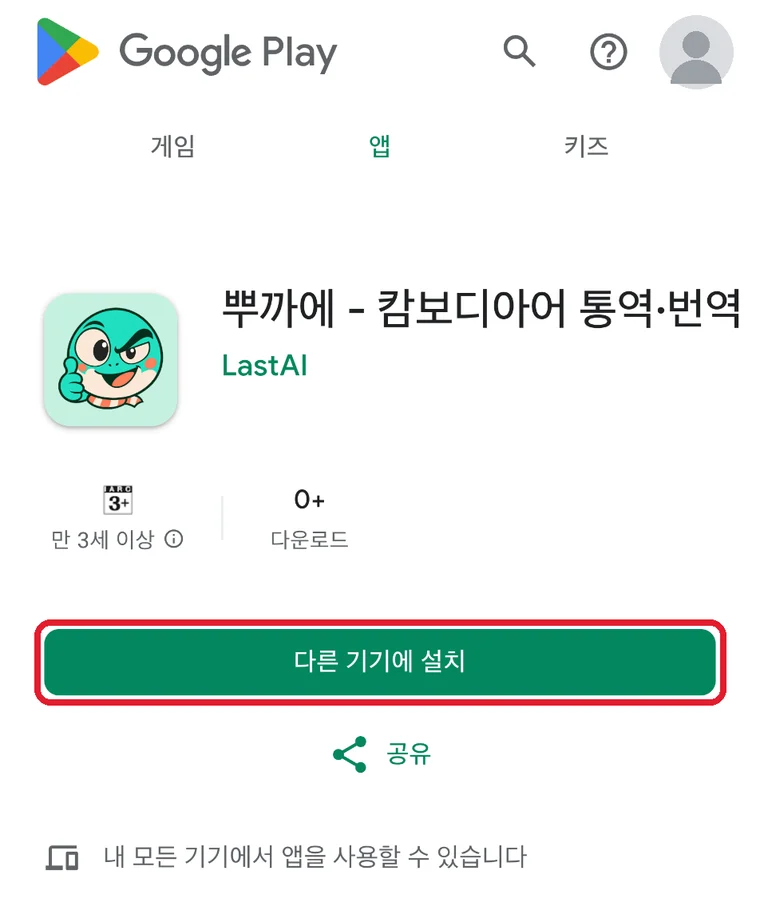
Right after you become a tester, the app may not show up yet. If you see 'not found', tap step 3 again in a few minutes.
When it finishes, tap Open. The first time, download the interpreting model (about 1.5GB) on Wi-Fi.
One request. After installing, please stay a tester for 14 days. To publish on Google Play, at least 12 testers must stay in the test for 14 days in a row. Just keep the app and stay in the group.
If it does not work
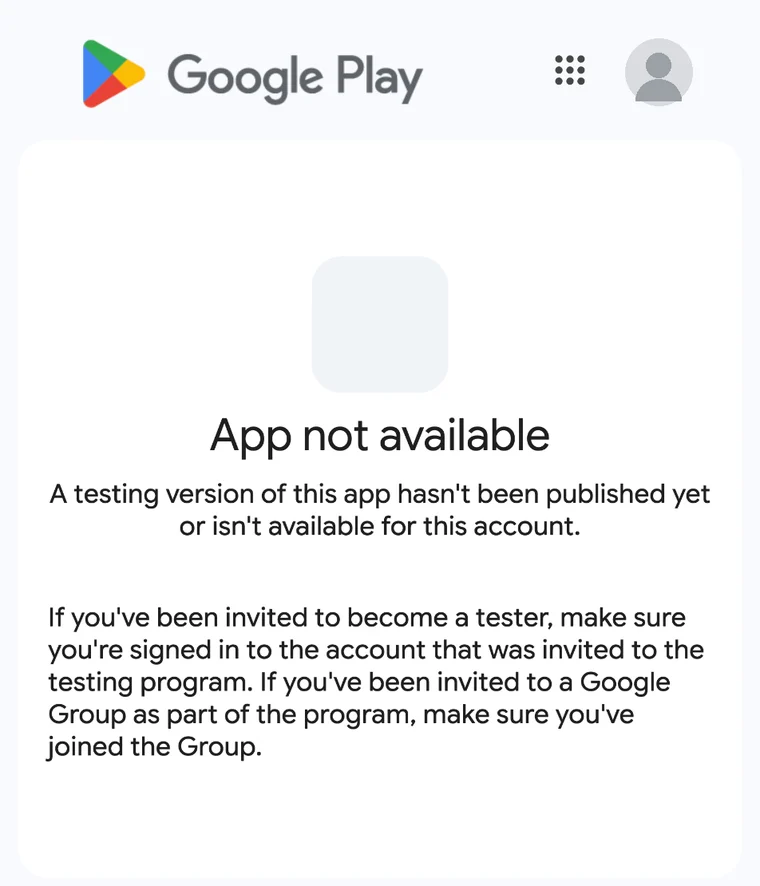
- 'App not available' or 'not found': the account has not joined the group in step 1, or the page opened with a different Google account. Tap the round account picture at the top right, switch to the account that joined in step 1, then tap step 2 again.
- It asks you to sign in: sign in with the Google account your phone's Play Store uses.
- You already installed PuKae from the APK: the Google Play version is signed with another key, so it does not install over it. Uninstall the app first, then tap step 3; you will need to download the models again. To keep the APK version, update with the new APK on PuKae's page.
- Searching the Play Store does not find PuKae: it does not appear in search until the account is a tester. Check that this account finished steps 1 and 2, then open it with the step 3 button.
- Still stuck? Email us with the step and what the screen said.